
Guides · A clearer next step
Wispr Flow + Berry: meeting notes to follow-ups
By the Berry team ·
The short answer
Berry connects read-only to Wispr Flow Notetaker through MCP and uses new meeting notes to identify commitments with their source context. It helps you see what you owe and what you are waiting for alongside supported messages. This is a meeting-note connection, not access to Wispr Flow dictation history, and not automatic end-to-end execution.
The meeting ends. The commitment should not disappear.
A client call ends with three next steps: you will revise the proposal, your cofounder will check delivery capacity, and the client will send the brief. The meeting note captures the conversation. By tomorrow, an email has changed the scope and a Slack message has answered one of the questions. Your job is no longer remembering the call; it is working out what still needs you.
That is where Berry fits. Keep using Wispr Flow for your meeting notes. Berry brings the commitments it identifies into a Mac workspace, alongside supported conversations from Gmail, Slack and WhatsApp Desktop. The useful outcome is a next step you can inspect, not another long recap to read.
Wispr Flow dictation and Notetaker are different inputs
If you use Flow only to dictate text into apps, this connection does not import that dictation history. You need access to Wispr Flow Notetaker and MCP on the account holding your meetings. Wispr's MCP is read-only and its access policies still apply.
Berry's reader is narrower than the full Wispr MCP service: it reads meeting notes and summaries, not transcripts, audio, Scratchpad or Notetaker chat history. A summary is not a verbatim record. Check an uncertain owner, deadline or promise before treating it as agreed work.
How to connect Wispr Flow to Berry
Berry currently requires macOS 14 or later and your own signed-in Claude Code or Codex account. AI-provider usage applies. The Wispr connection is optional and starts from Berry's Settings, not by giving Berry your Wispr password.
- In Wispr Flow, confirm that Notetaker and MCP are available for the account with your notes. Follow any cloud-access prompt; organization policies may prevent access.
- In Berry, open Settings → Connectors and choose Connect beside Wispr Flow.
- Complete the browser authorization with the correct Wispr account, then return to Berry to check the connector status.
- After connecting, use a new, non-sensitive test meeting with one clear next step. Once its notes are ready, check the resulting commitment and its source in Berry.
What to expect after the first connection
Berry's first read records existing meetings as history rather than turning the entire backlog into new tasks. An empty task list immediately after connection is therefore not, by itself, a failure. For a meaningful test, use a meeting that becomes available after that first read.
While Berry is running and your Mac is awake and online, the reader checks on a five-minute cycle after startup settles. Notes can take longer to become available in Wispr. Berry waits and retries when a new meeting has no notes yet; connection success does not mean every meeting is already processed or that a commitment is guaranteed to appear.
If nothing appears, check the Wispr account you authorized, whether the new meeting has readable notes, and Berry's connector status. Reconnect if Berry asks you to. If Wispr denies access because of an organization policy, ask your admin rather than repeatedly reconnecting. A meeting with no actual promise may correctly produce no task.
From a client call to the next useful action
Illustrative example: during a call you agree to send a revised proposal after the client supplies a brief. Treat that as a dependency, not an overdue proposal the moment the call ends. Inspect the meeting source, confirm who owns each step, and use newer messages to check whether the brief has arrived before deciding to follow up.
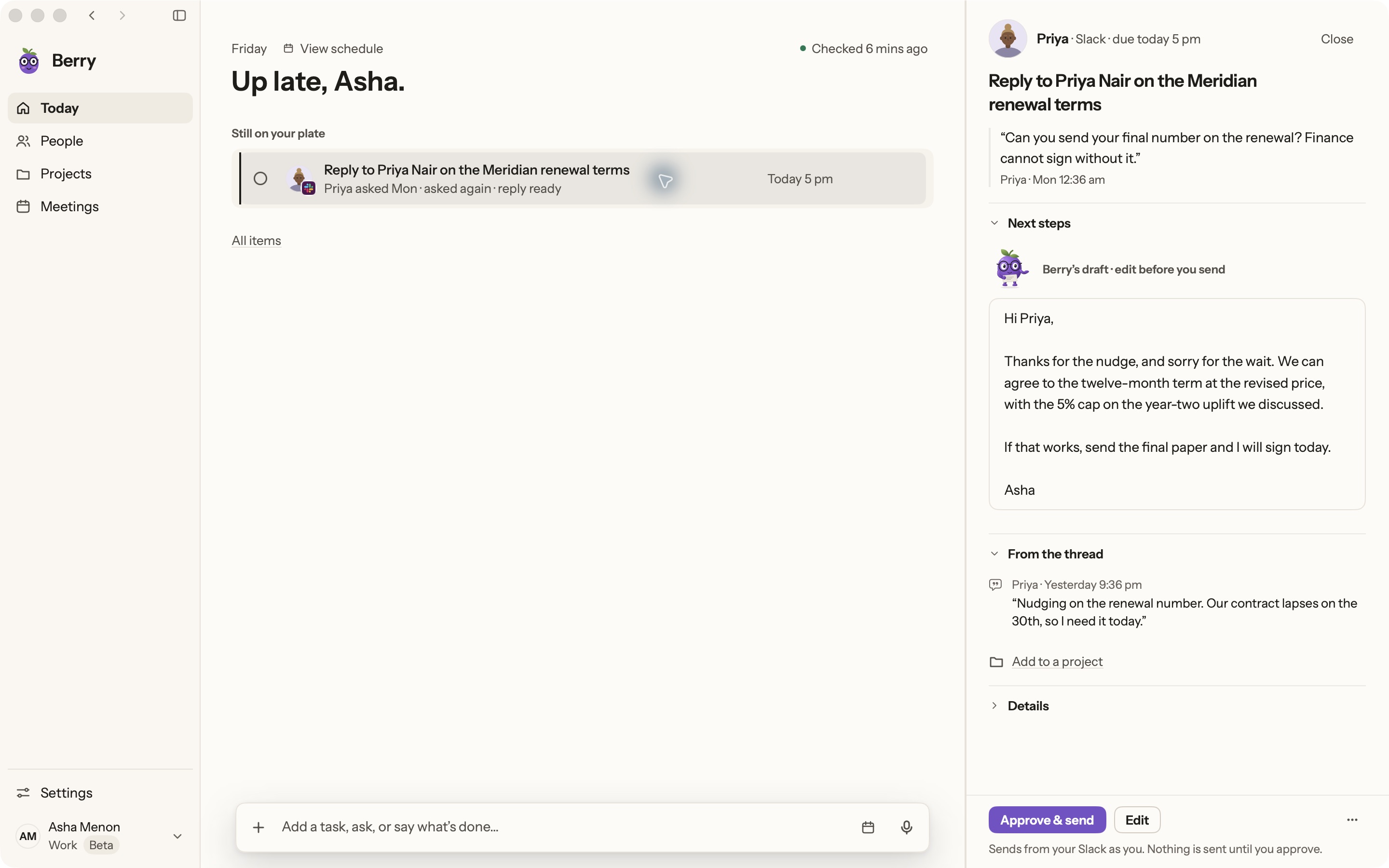
Berry's Today and Waiting views help separate work that needs you from responses you are waiting for. People and Projects provide another route back to the context. Review the source when an extracted commitment looks wrong; do not let an assistant's wording turn a tentative idea into a promise.
Actions have channel-specific boundaries today: Berry can prepare a Gmail draft for you to send, post a Slack reply after you approve the exact text, or open a WhatsApp conversation for you to send the message. It does not automatically update your CRM, change the calendar or execute every step of the proposal workflow. That broader execution layer is future work.
What happens to your meeting context?
The connector reads from Wispr Flow to your Mac. Berry keeps a local meeting index with information such as the title, time, attendees, short summary and next steps. The redacted note is processed through your own Claude Code or Codex account; running a Mac app does not mean AI processing stays entirely on-device.
Berry's servers retain commitment metadata, not the raw meeting note or transcript. Disconnecting stops Berry's reader and clears its local connection credentials and meeting index; it is not a promise to erase data already processed by your AI provider or delete your meetings in Wispr. Review Berry's privacy page before connecting confidential client work.
This guide is written by Berry. The connection uses Wispr's published MCP interface; it does not imply a Wispr partnership or endorsement.
When is this worth adding to your workflow?
If Wispr's notes already give you everything you need, keep the simpler setup. Berry is worth trying when your commitments continue across meetings and messages, and you spend time rediscovering who owes what before you can act.
Start with one working week and judge the result: did you recover a real promise, find the supporting context quickly, and avoid chasing something already handled? Berry is in a Mac-only private pilot. Join the waitlist if this matches your day; the founder will reach out personally to help you get started.
Sources and further reading
- Wispr Flow: official MCP setup and access requirements
- Berry: current integrations
- Berry: privacy and data boundaries
Found something outdated? Tell the Berry team.
Start with one real commitment.
Berry is in private pilot. See the real app and its current boundaries before joining.
Mac only · macOS 14+ · runs on your own Claude Code or Codex